multiple team members in a schedule at the same time

  • March 6, 2024
  • 2 replies
  • 1165 views

How do i get mutile team members in a schedule at a given time. Ex:

Monday - Friday 8:30AM - 5:30PM I need
Bob, Sarah, Jim, Bayley

Tuesday - Friday 8:30AM - 5:30PM I need
Bob, Sarah, Jim, Bayley, Fred ( Fred comes in on Tuesday )

Saturday - Sunday
Fred

2 replies

  • PagerDuty Team 📟
  • March 28, 2024

Do you want Bob, Sarah, Jim and Bayley to be on call at the same time monday to friday? You could create a schedule for each. Monday - Friday 8:30 AM - 5:30 PM and then a schedule for Fred that is Tuesday, Saturday and Sunday. Put all the schedules on the first layer of the EP that you want them to respond two.

You can copy a schedule with the duplicate function. https://support.pagerduty.com/docs/edit-schedules#duplicate-a-schedule


mwalls
Forum|alt.badge.img
  • Community Manager đź’š
  • June 24, 2026

Hi Everyone!

For folks looking for this kind of schedule, our new Shift-Based Schedules make things much easier!

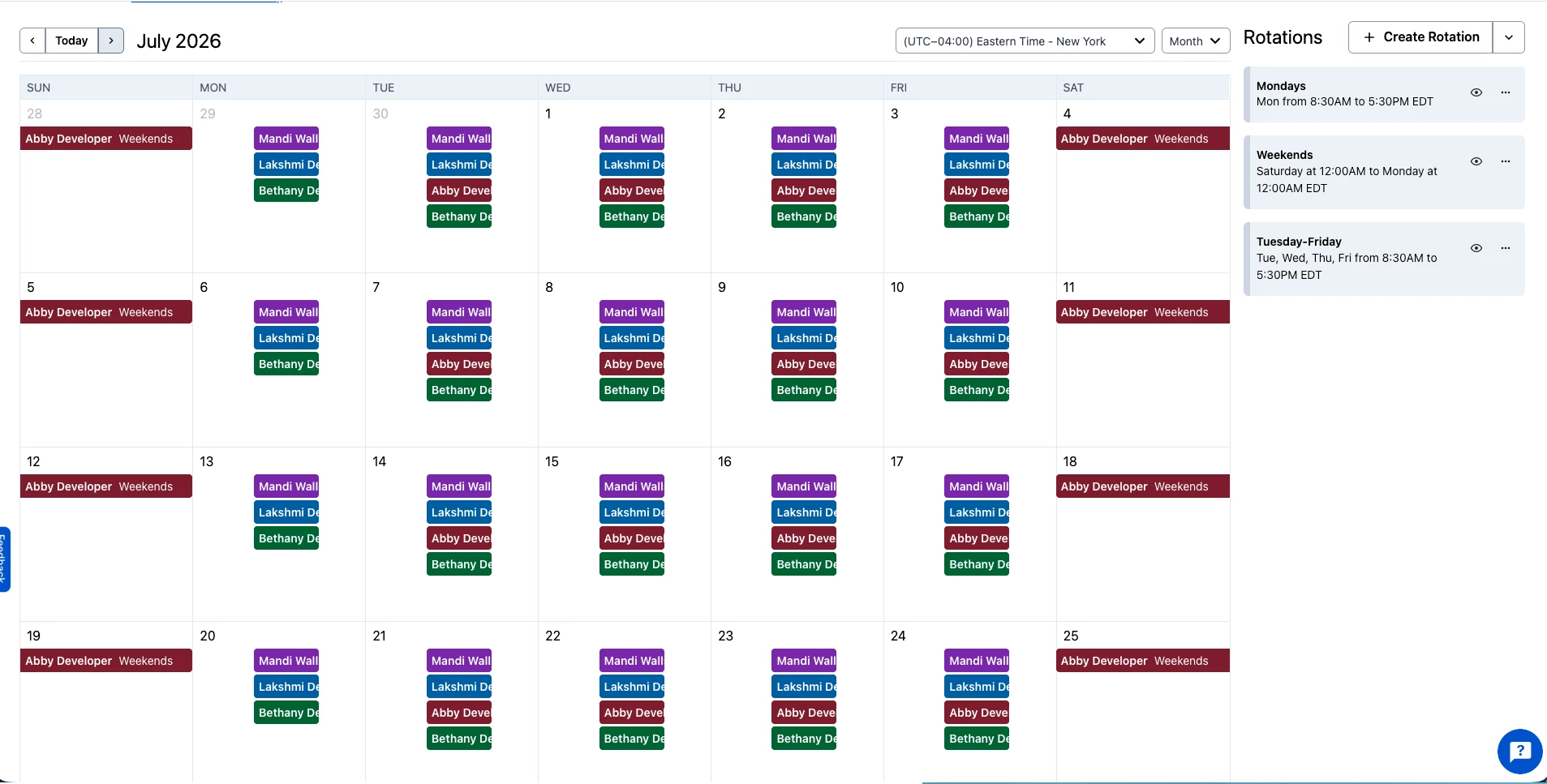
For this schedule, we’ll use three “rotations”, vs the layers in the previous features. You can fully customize each rotation for days of the week, active hours, handoff times, and members. 

Here’s how this one sets up:

  • Create a new schedule, give it a name and description, select a team and “Custom Schedule”
  • Create a new rotation, and give it a name like “Mondays”
  • For “Active days of the week” select only Monday
  • For “Active times of day” edit the times for 8:30AM to 5:30PM
  • Select “All members are on-call for each shift” in the “Shift assignment type”
  • On the Members tab, add the team members who will be on-call on Mondays: Bob, Sarah, Jim, Bayley
  • Save the rotation
  • Create a second rotation, and name it “Tuesdays - Fridays”
  • For “Active days of the week” select Tuesday, Wednesday, Thursday, and Friday
  • For “Active times of day” edit the times for 8:30AM to 5:30PM
  • Select “All members are on-call for each shift” in the “Shift assignment type”
  • On the Members tab, add the team members who will be on-call for Tuesday through Friday: Bob, Sarah, Jim, Bayley, and Fred
  • Save the rotation
  • Add one final rotation, named “Weekends”
  • For “Active days of the week” select only Saturday and Sunday
  • This original question did not specify any limit to the weekend hours, so we created this rotation with “All day” for “Active times of day”
  • Only one person will be included in this rotation, so the “Shift assignment type” can be either selection until another person is added
  • On the Members tab, add the single user, Fred
  • Save the rotation and save the schedule.

You can see in this example from my sandbox how the full schedule will look:

Hopefully this is helpful! If you have any questions about Shift-Based Schedules and whether your schedule will work in the new tools, post a new thread here in the forums and we’ll take a look!

--mandi